
Documentation Index
Fetch the complete documentation index at: https://docs.xagent.run/llms.txt
Use this file to discover all available pages before exploring further.
Uploading Knowledge
Upload documents and data to build your knowledge base for AI-powered retrieval.Upload Methods
Xagent supports two ways to add knowledge:File Upload
Upload individual files or multiple files at once:- Single file - Upload one document at a time
- Batch upload - Select multiple files simultaneously
- Drag & drop - Drag files directly to the upload area
Website Import
Crawl and import entire websites:- Start from URL - Provide a starting URL
- Crawl recursively - Follow links within the site
- Smart filtering - Control which pages to include
Supported File Types
Documents
- PDF -
.pdf - Word -
.doc,.docx - PowerPoint -
.pptx - Text -
.txt,.md - HTML -
.html,.htm
Data Files
- Excel -
.xlsx,.xls - CSV -
.csv - JSON -
.json
Code Files
- Python -
.py - JavaScript -
.js - Other code - Various source code formats
Maximum file size: 100MB per file. Larger files should be split before uploading.
Uploading Files
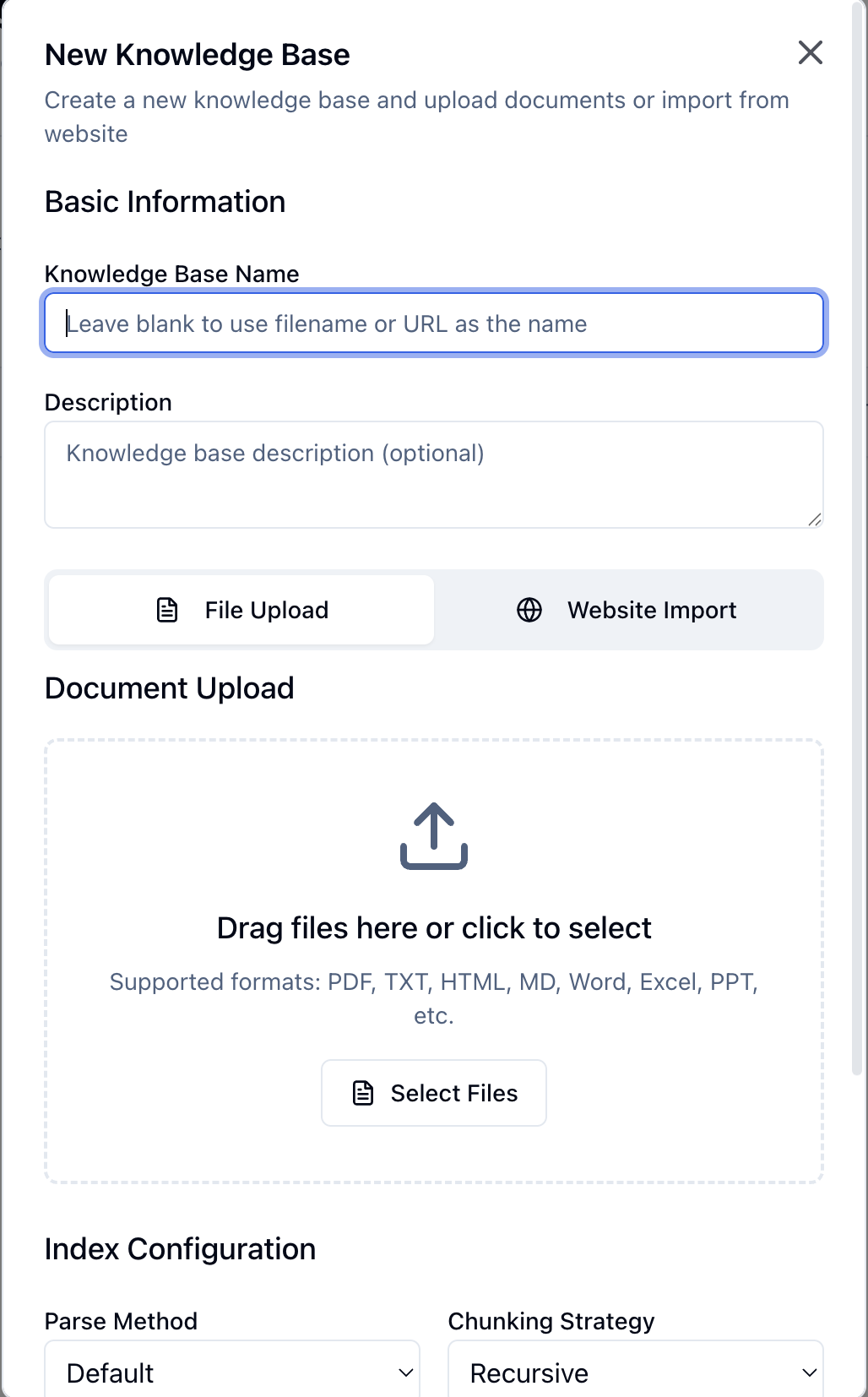
Step 1: Create or Select Knowledge Base
- Go to Knowledge Base in the sidebar
- Create a new knowledge base or select an existing one
Step 2: Choose Upload Method
File Upload:- Click Upload Files button
- Select files from your computer
- Or drag and drop files to the upload area
- Click Import Website button
- Enter the website URL
- Configure crawl options (see Website Import below)
Step 3: Configure Processing Options
Choose how to process your documents: Parse Method - How to extract text from filesdefault- Standard parsing (recommended for most files)pypdf- PDF parsing with PyPDFpdfplumber- Advanced PDF parsing with tablesunstructured- AI-powered document parsingpymupdf- Fast PDF parsingdeepdoc- Deep learning document parsing
recursive- Hierarchical splitting by structure (default)fixed_size- Fixed-size chunksmarkdown- Preserve Markdown structure
Step 4: Upload and Process
- Click Upload to start the process
- Monitor upload progress
- Documents are automatically:
- Parsed (text extraction)
- Chunked (split into segments)
- Embedded (converted to vectors)
- Indexed (stored in vector database)
Step 5: Verify
After upload completes:- Check document count in knowledge base
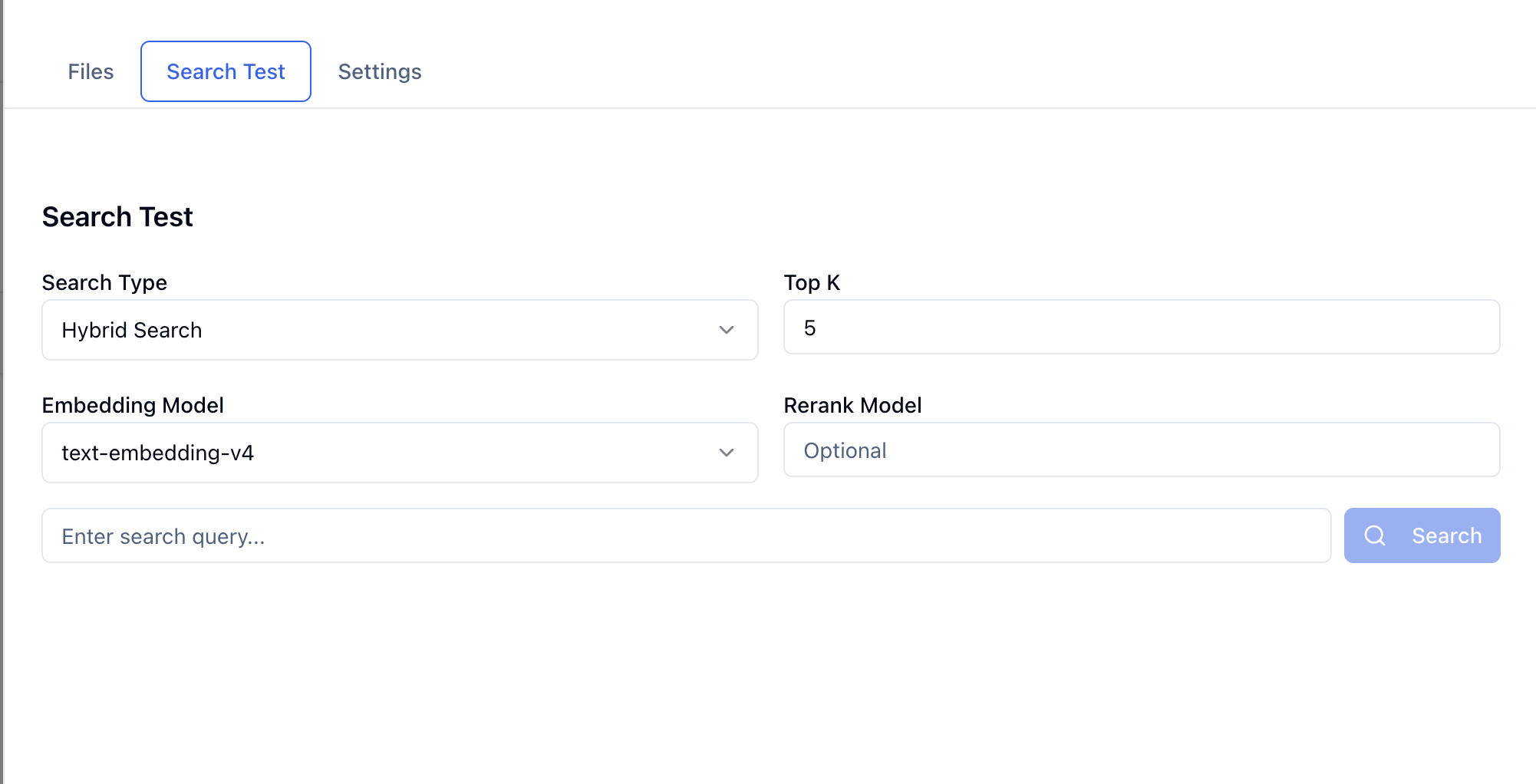
- Test search functionality
- Verify retrieval quality
Website Import
Basic Configuration
Start URL (Required)- The starting point for web crawling
- Example:
https://docs.example.com
- Maximum number of pages to crawl
- Prevents excessive crawling
- How many link levels to follow
- 1 = only the start page
- 2 = start page + direct links
- 3 = start page + links + their links
- Number of simultaneous requests
- Higher values = faster but more server load
- Delay between requests
- Be respectful to target servers
- Request timeout for each page
Advanced Configuration
Click Advanced to expand additional options: URL Pattern (Regex)- Only crawl URLs matching this pattern
- Example:
.*docs.*to only crawl documentation pages
- Exclude URLs matching this pattern
- Example:
.*blog.*to skip blog posts
- Only crawl pages on the same domain as the start URL
- Prevents crawling external sites
- Extract specific content using CSS selectors
- Example:
.main-contentto only extract main content area
- Remove elements matching this selector
- Example:
.ads, .sidebarto remove ads and sidebars
- Respect the website’s robots.txt file
- Recommended for ethical crawling
Import Process
- Discovery - Crawler finds pages
- Fetching - Downloads page content
- Extraction - Extracts text using configured selectors
- Filtering - Applies include/exclude patterns
- Processing - Chunks and embeds content
- Indexing - Stores in knowledge base
Website importing may take time depending on the number of pages and crawl settings. Monitor progress in the knowledge base detail view.
Managing Uploads
View Upload Status
In the knowledge base detail page:- Pending - Files waiting to be processed
- Processing - Currently being parsed and indexed
- Completed - Successfully uploaded and indexed
- Failed - Upload or processing errors
Delete Documents
Remove unwanted documents:- Go to knowledge base detail page
- Find the document in the list
- Click Delete button
- Confirm deletion
Retry Failed Uploads
If an upload fails:- Check the error message
- Fix the issue (file format, size, etc.)
- Re-upload the file
Best Practices
File Preparation
- Clean formatting - Well-formatted documents process better
- Remove unnecessary content - Delete headers/footers, page numbers
- Use standard formats - PDF, DOCX, TXT work best
- Split large files - Keep files under 100MB
- Organize by topic - Group related documents
Chunk Configuration
For technical documentation:- Larger chunks (1500-2000 chars)
- More overlap (300-500 chars)
- Preserve context
- Smaller chunks (500-800 chars)
- Less overlap (100-200 chars)
- Question-answer pairs
- Markdown strategy to preserve structure
- Medium chunks (1000-1500 chars)
- Include context
Website Import
- Start small - Test with a few pages first
- Respect servers - Use appropriate delays and concurrency
- Filter carefully - Use patterns to avoid unwanted content
- Monitor progress - Check crawl results periodically
- Check robots.txt - Ensure compliance with site policies
Quality Assurance
After uploading:- Test search - Verify relevant content is found
- Check chunks - Review how documents were split
- Adjust settings - Fine-tune chunk size and overlap
- Re-upload if needed - Delete and re-upload with better settings
Troubleshooting
Upload Fails
Check:- File size is under 100MB
- File format is supported
- Network connection is stable
- Sufficient storage space
- Split large files
- Convert unsupported formats
- Retry the upload
Processing Takes Too Long
Optimize:- Reduce chunk size
- Use faster parse method (default or pymupdf)
- Process fewer files at once
- Check embedding model performance
Poor Search Results
Improve:- Adjust chunk size and overlap
- Try different parse method
- Improve document formatting
- Check embedding model quality
Website Import Issues
Common problems:- Site blocks crawlers
- JavaScript-rendered content
- Rate limiting
- Incorrect content selectors
- Check robots.txt
- Adjust request interval
- Use content selectors
- Filter URLs more carefully
Next Steps
- Knowledge Base Overview - Learn about knowledge features
- Knowledge Retrieval - Search and retrieve information
- Embedding Models - Configure vector embeddings