
Documentation Index
Fetch the complete documentation index at: https://docs.xagent.run/llms.txt
Use this file to discover all available pages before exploring further.
LLM Models
Large Language Models (LLMs) are the core intelligence behind Xagent, handling reasoning, planning, and text generation.LLM Types
Main Model
The primary LLM used for all task execution by default. Purpose:- Task planning and decomposition
- Complex reasoning and analysis
- Tool selection and orchestration
- All decision making
- Required to configure
- Used for all steps by default
- Unless fast model is configured and step is identified as simple
- Claude 4.6 Sonnet (recommended)
- Claude 4.6 Opus (for complex tasks)
- GPT 5.2
- Gemini 3 Pro
Fast Model (Optional)
A lightweight LLM for simple steps identified during planning. Purpose:- Execute simple, routine operations
- Reduce cost for straightforward tasks
- Improve speed for basic operations
- Optional - if not configured, main model is used for all steps
- During planning phase, Xagent identifies which steps are “simple”
- Simple steps use fast model; complex steps use main model
- Automatically determined by the planning engine
- Want to optimize costs
- Have many simple, repetitive tasks
- Need faster execution for routine operations
- Claude 4.6 Sonnet (recommended - best balance)
- Claude 4.6 Haiku (for cost optimization)
- GPT 5.x
- Other fast/cost-effective LLMs
- Lower cost for simple operations
- Faster execution for straightforward steps
- Automatic routing between main and fast model
- No manual intervention required
Long Context Model (Compact Model)
Specialized LLM for compressing conversation history when it exceeds token limits. Purpose:- Compress conversation history when it exceeds the threshold
- Maintain important information across long conversations
- Optimize token usage for extended sessions
- Enable long-running tasks without hitting context limits
- Xagent identifies that compaction is needed
- Sends conversation history to the compact model
- Compact model compresses while preserving:
- Original user goal
- Key information from previous steps
- Critical context
- Compressed history replaces original messages
- Task continues with compressed context
- Token limit that triggers compaction
- Lower threshold = more frequent compaction
- Can be adjusted per task or agent
- If compaction fails, truncates to recent messages
- Keeps system messages
- Preserves most recent conversation
- Long-running tasks or conversations
- Multi-step processes that accumulate context
- Tasks with extensive back-and-forth
- When token usage becomes a concern
- Main model is used for compaction
- May be slower or more expensive
- No dedicated model for optimization
- Models with good summarization capabilities
- Fast models to reduce compaction time
- Cost-effective models for long conversations
- Examples: Claude 4.6 Sonnet, GPT 5.x, Gemini 3 Pro
Vision Model (Optional)
Multimodal LLMs that can analyze images alongside text. Purpose:- Enable image understanding tools
- Support screenshot interpretation
- Power OCR and chart analysis
- When images are uploaded, vision LLM analyzes them
- Returns detailed description of visual content
- Description used for further reasoning
- Tasks involving image uploads
- Screenshot analysis
- Document scanning
- Visual data extraction
understand_images- Analyze and answer questionsdescribe_images- Generate descriptionsdetect_objects- Object detection
Vision capabilities and supported tools vary by model. Check provider documentation for specific model capabilities.
Model Parameters
Temperature
Controls randomness in model responses. Range: 0.0 - 2.0 Guidelines:- 0.0 - 0.3: Focused, deterministic outputs
- Best for: Code generation, data extraction, factual responses
- 0.4 - 0.7: Balanced creativity and focus
- Best for: General tasks, conversation, analysis
- 0.8 - 1.0+: Highly creative, varied outputs
- Best for: Creative writing, brainstorming, diverse ideas
- Main model: 0.3 - 0.5 (reliable reasoning)
- Fast model: 0.0 - 0.3 (consistency)
Max Tokens
Maximum length of model response. Considerations:- Short responses (100-500 tokens): Quick answers, summaries
- Medium responses (500-2000 tokens): Explanations, analysis
- Long responses (2000+ tokens): Detailed content, generation
- Set based on your typical use case
- Consider token costs for long outputs
- Adjust based on task requirements
Top P
Alternative to temperature for controlling randomness. Range: 0.0 - 1.0 Usage:- Lower values: More focused, conservative responses
- Higher values: More diverse responses
- Often used with temperature = 1
Configuration Strategy
Single Model Setup
For simple deployments, use one LLM for all purposes: When to use:- Getting started
- Limited budget
- Homogeneous task types
- Simplified management
- Choose a balanced model (e.g., GPT-4 Turbo, Claude 3 Sonnet)
- Use as both main and fast model
- Add specialized models only when needed
Multi-Model Setup
For optimal performance and cost, configure different LLMs: Benefits:- Cost optimization (use fast model when possible)
- Performance optimization (use main model when needed)
- Specialized capabilities (long context)
- Flexibility for different task types
- Main Model: Claude 4.6 Sonnet (balanced performance)
- Fast Model: Claude 4.6 Sonnet (shared with main)
- Long Context: Gemini 3 Pro (context compression)
Supported Providers
OpenAI & OpenAI-compatible
Models: GPT 5.x series Setup:- Get API key from OpenAI Platform
- For compatible services, provide base URL and API key
- Select model name as required
- General-purpose tasks
- Wide availability
- Strong ecosystem
Anthropic
Models: Claude 4.6 (Opus, Sonnet, Haiku) Setup:- Get API key from Anthropic Console
- Configure API key
- Select Claude model
- Complex reasoning
- Long-context applications
- Nuanced understanding
- Get API key from Google AI Studio
- Configure API key
- Select Gemini model
- Large context windows (1M+ tokens)
- Multimodal capabilities
- Cost-effective scaling
Xinference
Models: Open-source LLMs (Llama, Mistral, Qwen, etc.) Setup:- Deploy Xinference server
- Configure base URL
- Select model from Xinference
- Data privacy
- Cost control
- Custom deployment
Adding LLMs
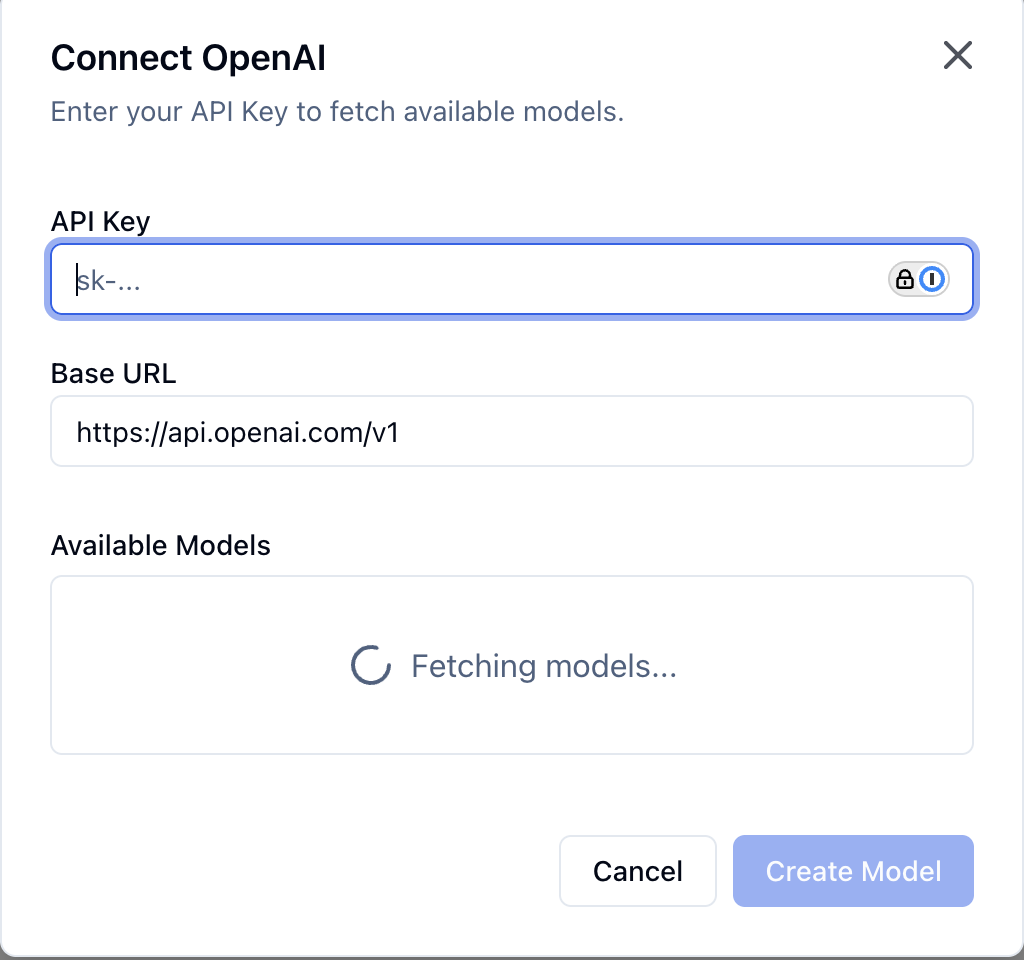
Step 1: Navigate to Models Page
Go to Models in the left sidebar.Step 2: Add Provider
- Click Add Model or Add Provider
- Select your provider type
Step 3: Configure Credentials
Required:- API Key - Your provider API key
- Base URL - For OpenAI-compatible services or custom endpoints
- Leave empty for official providers (OpenAI, Anthropic, Google)
Step 4: Fetch Available Models
After entering credentials:- Xagent automatically fetches available models from the provider
- Models appear in the dropdown list
- Select the model you want to use
For most providers (OpenAI, Anthropic, Google), just enter the API key. Base URL is only needed for compatible services or self-hosted models.
Step 5: Configure Model
- Select the model from the list
- Choose the model type (Main, Fast, Long Context, Vision)
- Configure parameters (temperature, max tokens, etc.)
- Test the connection
Step 6: Set as Default
Make the model available for:- Global default
- Per-task selection
- Per-agent configuration
Editing Models
Click on any configured model to modify its settings: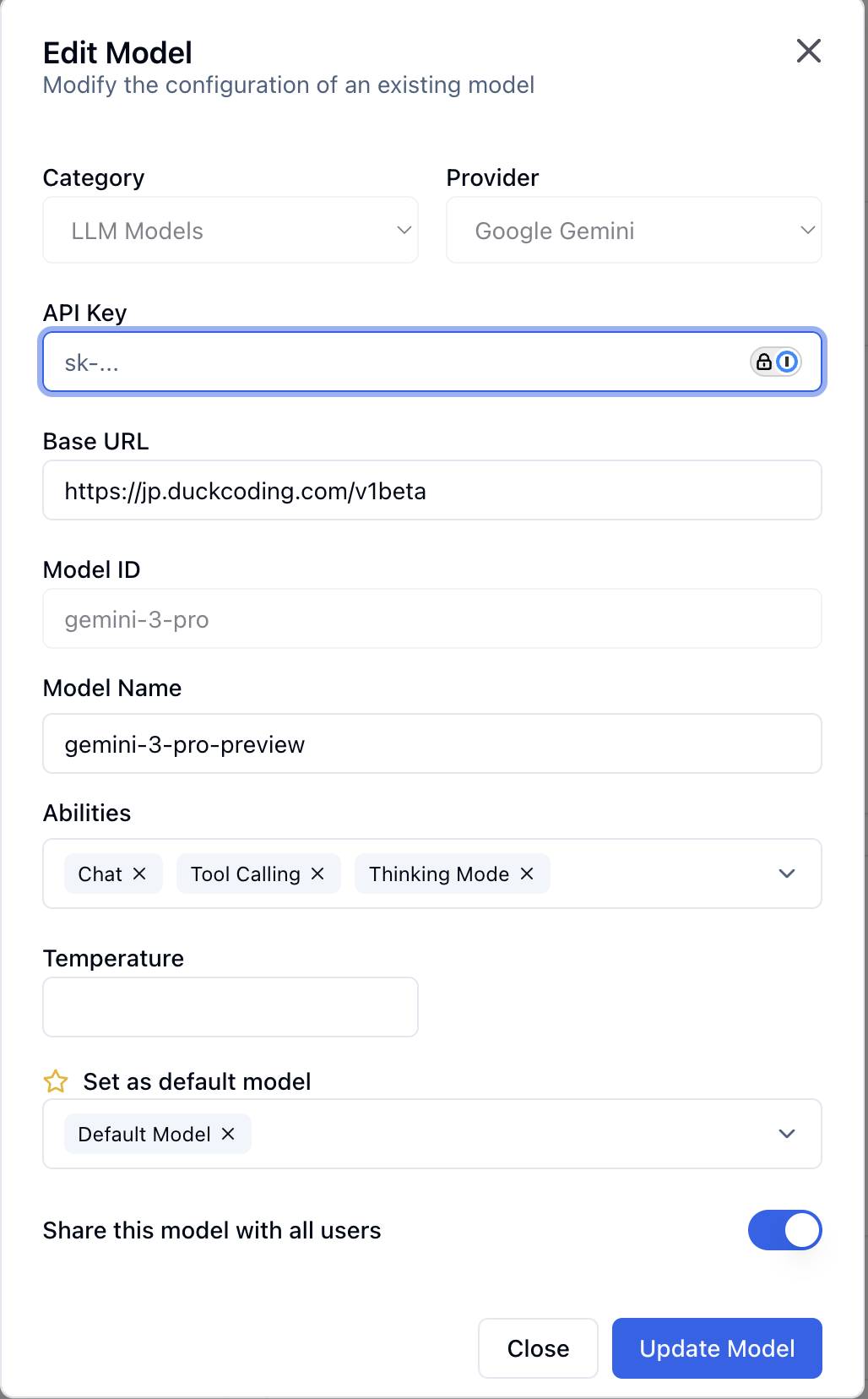
- Model type (Main, Fast, Long Context, Vision)
- Display name
- Model parameters (temperature, max tokens, etc.)
- API credentials
- Default status
- Update configuration
- Delete model
- Test connection
- View usage statistics
Best Practices
Match Model to Task
- Complex planning: Use main model with high reasoning capability
- Simple queries: Use fast model to save cost and time
- Long conversations: Use long context model for compression
Monitor and Optimize
- Track token usage per model
- Monitor costs
- Evaluate quality vs. speed trade-offs
- Adjust configurations based on actual usage
Test Configurations
Before deploying to production:- Test with your actual tasks
- Compare different models
- Evaluate cost and performance
- Get feedback from users
Troubleshooting
Model Not Available
Check:- API credentials are correct
- Model is available in your region
- Account has access to the model
- API quota limits
Poor Performance
Try:- Adjusting temperature
- Trying a different model
- Improving prompt clarity
- Increasing max tokens
High Costs
Optimize:- Use fast model when appropriate
- Set reasonable max tokens
- Monitor usage patterns
- Consider long context model to reduce tokens
Next Steps
- Model Overview - Learn about all model types
- Embedding Models - Configure vector embeddings
- Image Generation Models - Configure image generation/editing models
- Building Agents - Use models in agents