
Documentation Index
Fetch the complete documentation index at: https://docs.xagent.run/llms.txt
Use this file to discover all available pages before exploring further.
Tools Overview
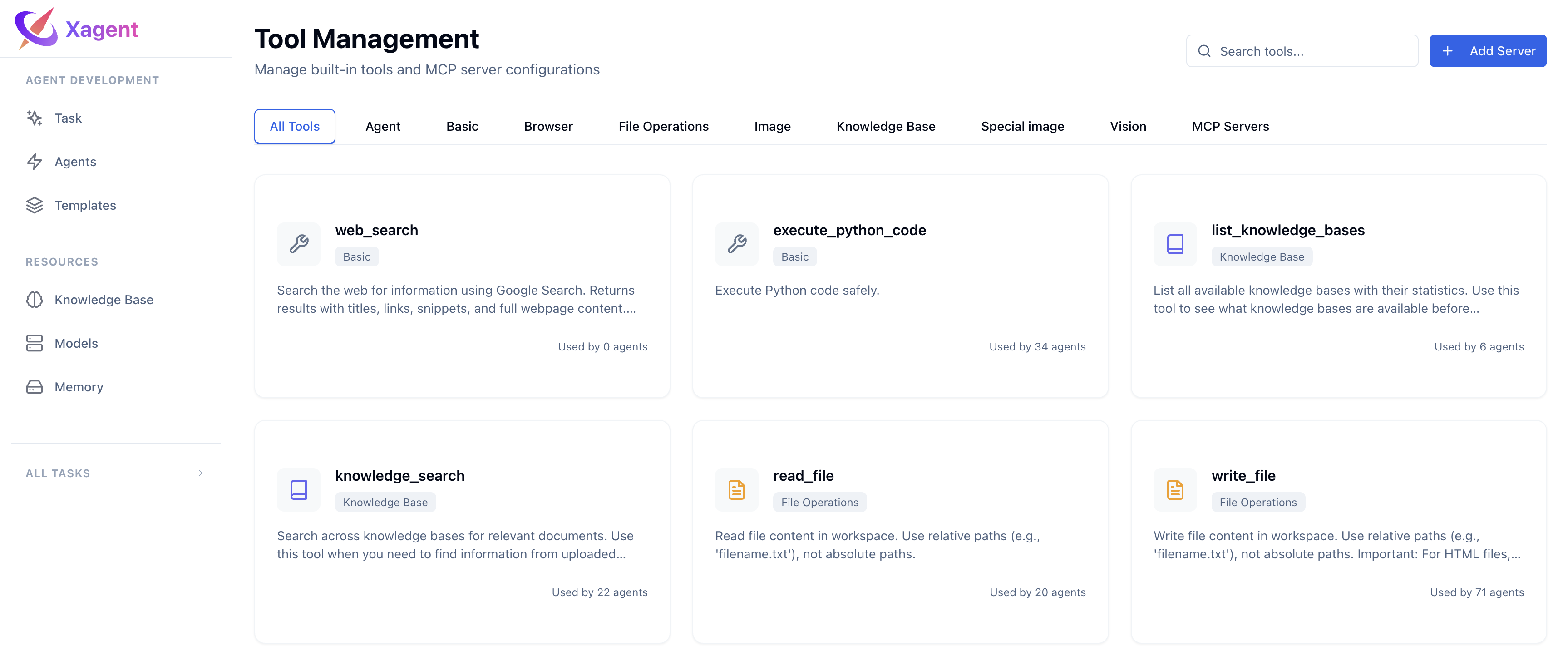
What Are Tools?
Tools are functions that agents can call during execution to perform specific actions:- Web Search - Find current information online
- Knowledge Base - Search your documents
- File Operations - Read, write, and process files
- Vision - Understand and analyze images
- Image Generation - Create and edit images
- Code Execution - Run Python code
- Browser Automation - Control web browsers
- And more - Extensible through MCP protocol
Why Use Tools?
Tools enable agents to:- Take real-world actions - Interact with actual systems
- Access dynamic data - Get up-to-date information
- Process files - Work with documents, images, code
- Automate workflows - Execute multi-step operations
Tool Categories
Xagent organizes tools into categories for easy management:Basic Tools
Core capabilities for general tasks:- Web Search - Search the internet for current information
- Python Executor - Execute Python code for data analysis and computation
Knowledge Tools
Search and retrieve information from your knowledge bases:- List Knowledge Bases - See available knowledge bases
- Search Knowledge Base - Find relevant documents using RAG
File Tools
Work with files in your workspace:- Read Files - Read text files, documents, PDFs
- Write Files - Save content to files
- List Files - Browse directories
- Edit Files - Modify file content
- Parse Documents - Extract text from PDFs, DOCX, Excel, etc.
Vision Tools
Understand and analyze visual content:- Understand Images - Answer questions about images
- Describe Images - Generate detailed descriptions
- Detect Objects - Find and identify objects in images
Image Tools
Create and modify images:- Generate Image - Create images from text descriptions
- Edit Image - Modify existing images
Browser Tools
Automate web browser interactions:- Navigate - Browse websites
- Interact - Click buttons, fill forms
- Extract - Scrape web data
- Screenshot - Capture pages
MCP Tools
Connect to external tools via MCP (Model Context Protocol):- Dynamic tool loading
- External service integration
- Custom tool servers
Agent Tools
Use published agents as tools:- Task delegation
- Specialized agent capabilities
- Workflow composition
Using Tools in Agents
Configuring Tool Access
When building an agent, you control which tools it can use:- Go to Build page
- Create or edit an agent
- In the Tools section:
- Select tool categories to enable
- Agent will only have access to tools in chosen categories
- Different agent roles need different tools
- Customer Support Agent - Enable: knowledge, file
- Data Analyst Agent - Enable: basic, file, python executor
- Content Creator Agent - Enable: basic, image, file
- Research Assistant - Enable: basic, knowledge, browser, file
Tool Categories in Agent Builder
Available categories to select:- basic - Web search, code execution
- file - File operations and document parsing
- vision - Image understanding
- image - Image generation and editing
- knowledge - Knowledge base search
- browser - Browser automation
- ppt - PowerPoint processing
- office - Office document processing
- special_image - Special image operations
- mcp - MCP protocol tools
Only enable tool categories that the agent needs. Too many tools can lead to slower execution and irrelevant tool calls.
How Tools Work
Tool Selection
When executing a task, Xagent:- Analyzes the request - Understands what needs to be done
- Selects relevant tools - Chooses appropriate tools from available categories
- Calls the tool - Executes with required parameters
- Processes results - Uses tool output to generate response
Tool Parameters
Each tool has specific parameters:- Required parameters - Must be provided
- Optional parameters - Have default values
- Auto-generated parameters - Filled in by Xagent (like file paths)
Tool Results
Tools return structured results:- Success status - Whether the tool call succeeded
- Output data - Result of the operation
- Error messages - Details if something went wrong
- Metadata - Additional information (execution time, tokens, etc.)
Best Practices
For Agent Builders
Match Tools to Purpose- Only enable necessary tool categories
- Consider what actions the agent needs to perform
- Avoid over-provisioning tools
- Verify agent can use enabled tools
- Test with realistic tasks
- Monitor tool usage patterns
- Some tools have security implications (file, browser, code)
- Only enable for trusted use cases
- Review agent permissions
For Users
Be Specific in Requests- Clear requests help Xagent choose the right tools
- Mention what you want to accomplish
- Provide context about available resources
- Xagent automatically selects appropriate tools
- You don’t need to specify which tool to use
- Focus on describing what you want
- If Xagent uses the wrong tool, clarify your request
- Suggest the specific action you want
- Correct misunderstandings
Next Steps
- Built-in Tools - Detailed reference for all available tools
- Custom Tools via MCP - Integrate custom tools using MCP protocol
- Building Agents - Configure tools in your agents
- Models - Configure models required for tools